
Notifications, Redlines, and Change History
Winnow sends a weekly report to your inbox if there are any changes to the requirements in your saved surveys during the week. Clicking the View Report link takes you to the change report for that week.
Changes are grouped by survey, and each requirement shows a colored badge indicating whether it was Added, Removed, or Updated on your survey. The reason why the change happened, or the Change Type, is also displayed under the requirement link. If a requirement has changes to view, clicking on the View Changes link for that requirement will take you to the requirement detail page with the changes highlighted.
Change Types
These change types may apply to requirements in your saved surveys. The following change types also appear on the Winnow Change History page:
Newly Enacted Law: Enactment or adoption of a new law or regulation.
Enhanced Coverage: A requirement added to Winnow due to the expansion or development of existing content.
Amendment: Amendment to existing law or regulation.
Repeal: Repeal of existing law or regulation.
Amended Effective Date Range: Legislative amendment to the beginning or ending effective date on a requirement.
The following change types may also appear in your saved surveys:
Recategorized: The topics or product parameters (e.g., open-end, closed-end) assigned to this requirement have changed. The prior version is no longer available in Winnow.
Refined: This requirement was revised for precision. The prior version is no longer available in Winnow, but your notification includes a requirement redline for informational purposes.
Recategorized & Refined: This requirement was recategorized and refined as described above. The prior version is no longer available in Winnow.
Updated Guidance: One or more attachments were added or removed from the requirement.
Duplicate: This requirement was removed from Winnow because it duplicates another Winnow requirement that already appears in your survey.
Out of Scope: This requirement was removed from Winnow because the subject matter or applicability is outside the current scope.
Change Status
You may see a status next to items in your weekly change report.
Added or Removed: Refer to the survey redline to identify which requirements were added or removed. The individual requirement redline will be of limited utility.
Updated: Refer to the individual requirement redline for a comprehensive view of all changes made
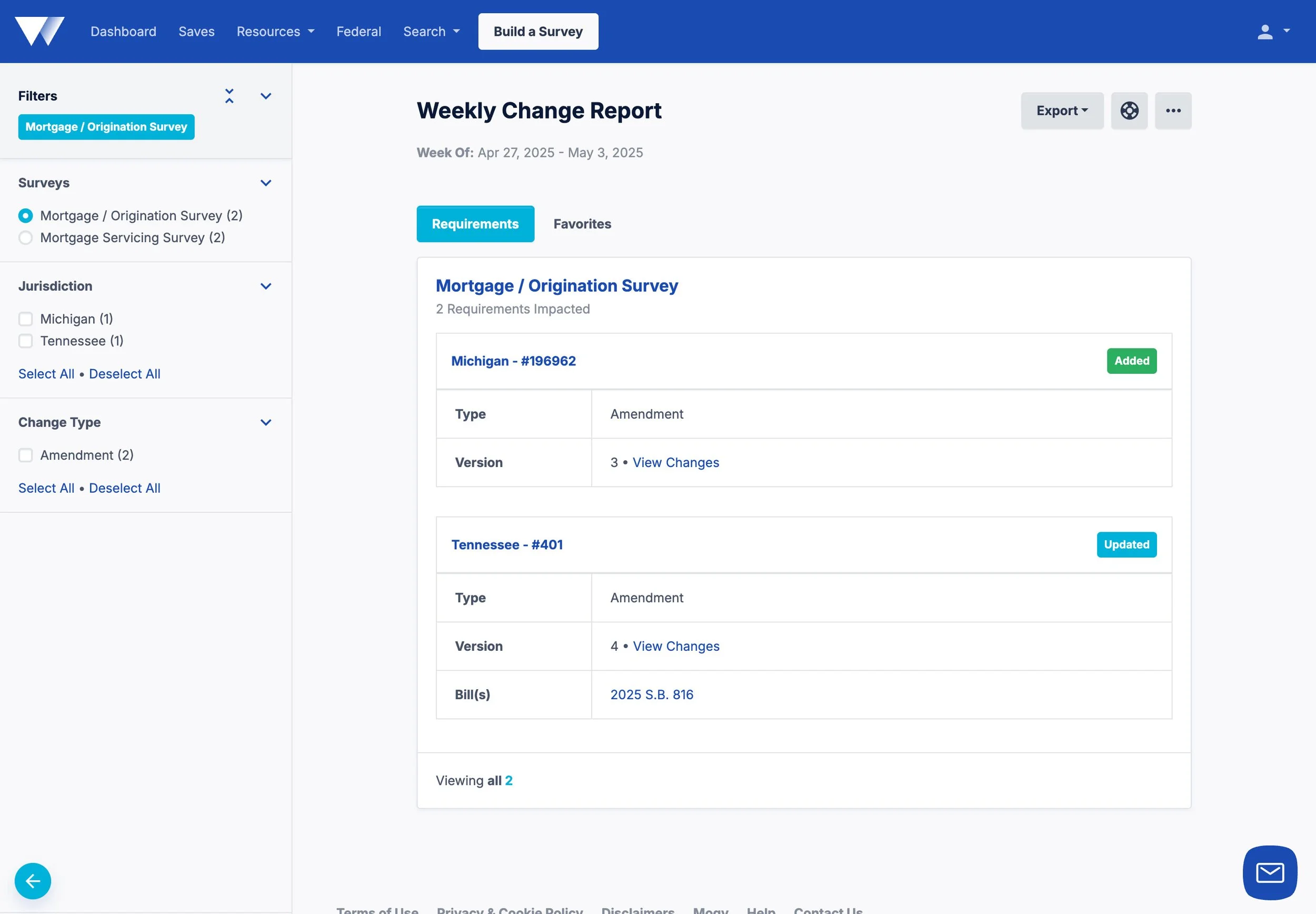
Navigating Your Change Report
Your weekly change report is organized into tabs to make navigation easier. The primary tab is your Requirements. These are all the changes included in your report for the week. Requirements are grouped by survey. You can change the active survey in the left sidebar.
The next tab is for Favorites. Requirements that you’ve marked as a favorite to track in Winnow will show up here if there are any changes.
The sidebar on the change report page includes a few filters. These are:
Surveys: View the changes per survey for the previous week
Jurisdiction: See changes across all states in your survey, or just a few
Change Type: Narrow results to a specific change type, as described above